Wallets, deposits and withdrawals
Your wallets are the same as in your Telegram bot. You manage them in Portfolio › Wallets (P), and you pick which ones trade with the Execution wallets pill at the top of the desk.
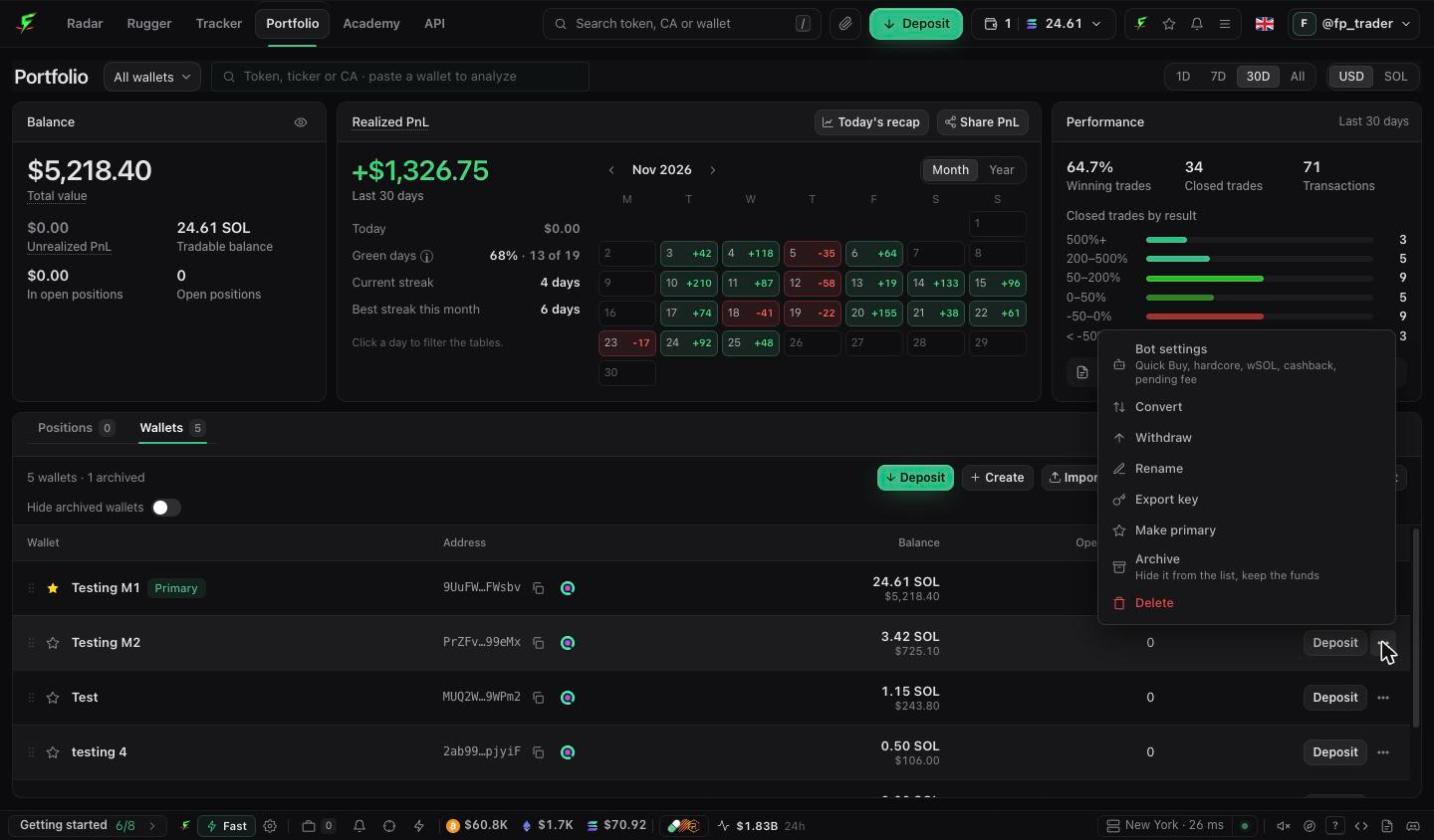
- 1Deposit · Create · Import
- 2Hide archived wallets
- 3Handle: drag to reorder (same order in the bot)
- 4Star / Primary chip
- 5⋯ menu: Bot settings, Convert, Withdraw, Rename, Export, Archive, Delete
Manage your wallets
| Action | How | Good to know |
|---|---|---|
| Create | Create button → name (default “Sniper n”) | The wallet is created in your bot too. Deposit SOL to get started. |
| Import | Import → name + private key (base58, byte array) or 12/24-word recovery phrase | Encrypted before it’s stored, never shown again. The wallet joins your bot with auto-buy off. Your account password is required. Telegram connection required. |
| Primary | Star or “Make primary” | Buys use this wallet unless you pick another. |
| Reorder | Drag the ⋮⋮ handle | The order is also your bot’s order. |
| Rename | ⋯ menu › Rename | |
| Archive | ⋯ menu › Archive | Hides it from the list, keeps the funds. Not possible on the primary. Restore at the bottom of the list. Archived wallets no longer show in Deposit, Convert, Export, Copy trade. |
| Hide archived | Toggle (if you have any) | Remembered on this device. |
| Delete | ⋯ menu › Delete | Removes the wallet from F Project and from the bot. The funds stay on-chain: only your key can reach them. You must export the key and tick “I already exported this key” first. Not possible on the primary/only wallet or if it still owes buy fees. Also deletes its trackers, copy groups and limit orders. |
| Export key | ⋯ menu › Export key | Password (+ 2FA code if on). See Security. |
Bot equivalent: 👜 Create & manage your wallets.
Execution wallets
The pill at the top (number of wallets + SOL) picks the wallets that buy and sell from the Radar, the token page and the shortcuts.
- Star = primary wallet: it buys and sells first.
- Variance %: each wallet buys a slightly different size (default ±15%).
- Buy delay ms: delay between two wallets.
- Add a wallet, Claim cashback, Manage wallets.
Spreading across several wallets makes your position less visible to the rugger (Academy, level 5).
Deposit
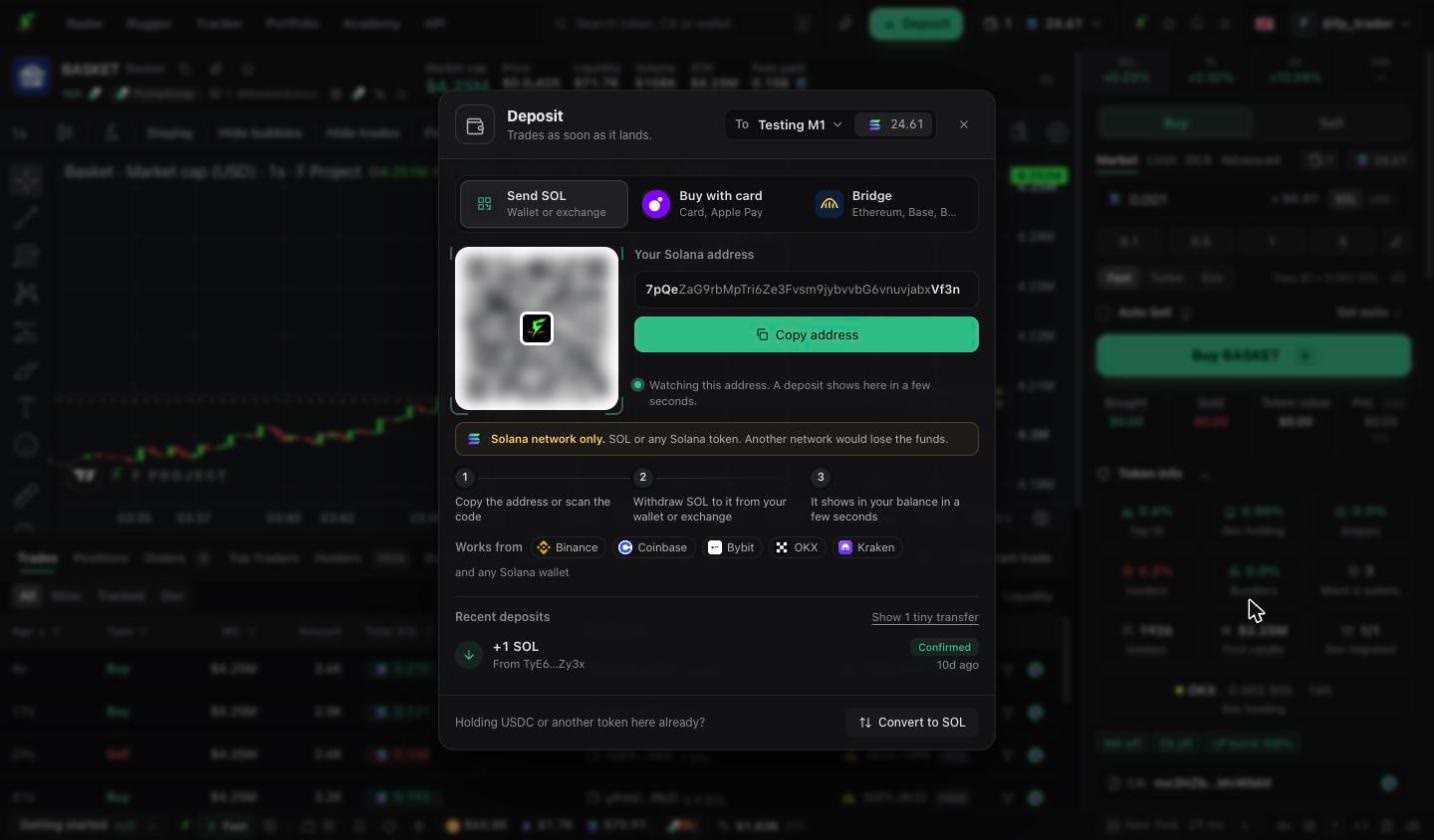
- 1To: the receiving wallet
- 2Send SOL · Card · Bridge
- 3QR code and address
- 4Recent deposits
Deposit button (at the top, or on a wallet’s row). Pick the To wallet, then how to deposit:
Send SOL
From an exchange or another wallet.
- Copy the address or scan the QR code.
- Withdraw SOL to this address from your exchange (Binance, Coinbase, Bybit, OKX, Kraken…) or your wallet.
- The deposit shows up within seconds (“Watching this address”).
Solana network only. SOL or any Solana token. Another network = lost funds.
Below the tabs, Recent deposits lists confirmed arrivals (Solscan link). Got USDC or another token? Convert to SOL.
Convert
⋯ menu › Convert (or the bar button). Swaps a token in your wallet for SOL via Jupiter.
- Amount with Max, token choice (largest first; dust is grouped).
- Shows what you receive after the bribe, the route, price impact (red above 1%), minimum received.
- The only F Project fee is the bribe, as on every transaction. If the amount is too small, the bribe exceeds what you’d receive: the terminal warns you.
Consolidate and distribute
- Consolidate (many → one): pick a destination, tick the sources, % of each source. Verify & gather.
- Distribute (one → many): one source, destinations, SOL per destination. Verify & split.
The password is asked only once for the whole batch.
Withdraw
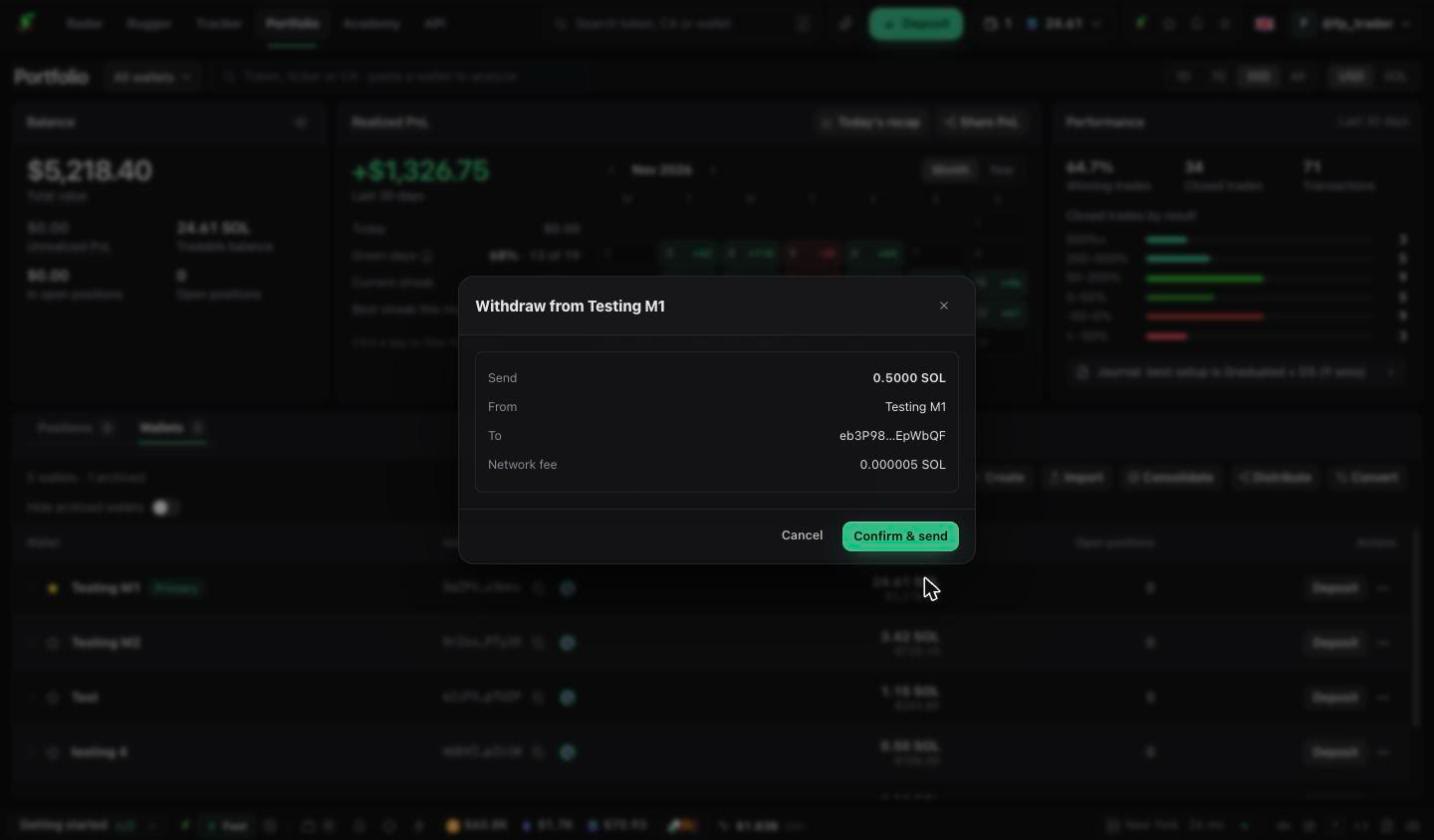
- 1Review: amount sent, from wallet, destination
- 2Network fee
- 3Confirm & send
⋯ menu › Withdraw → “Withdraw from …”.
Fill in the withdrawal
Asset (SOL), amount (25 / 50 / 75 / 100%, default 100%), Solana destination address.
Review
Summary: sending, from, to, network fee (0.000005 SOL). Then Confirm & send.
Password
“Confirm with your password”: your account password. Forgot it? “Forgot password?” (see Security).
2FA code (if on for withdrawals)
“Confirm the withdrawal”: the code from your app.
- Only SOL can be withdrawn. “Token withdrawals are not available yet. Sell to SOL, then withdraw.”
- The network fee is taken from the amount: Max empties the wallet.
- You can save up to 50 withdrawal addresses.
Withdrawal protections:
- 50 SOL per day cap on withdrawals per account, over a rolling 24 hours. Past it, the message shows how much you have left.
- Single-use codes: each withdrawal (and each money action on a bot wallet or tracker) asks for your password for a fresh code, valid once. A batch (consolidate / distribute) asks only once.
- Program address: sending to a program account (PDA) asks for an extra confirmation.
More on the password and 2FA: Security.
Bot settings for a wallet
⋯ menu › Bot settings → ”… in the bot”: this wallet’s tools in your bot.
- Pending buy fee: Pay & unfreeze. Auto-buy stays frozen until it’s paid.
- Quick Buy: Manual / Auto, amount 0.001–100 SOL. See Quick Buy CA.
- Copy buys: Normal / Hardcore mode. See Buy Modes.
- Wrapped SOL: wrap (0.05 SOL stays for fees) / Unwrap all (recovers the rent).
- Pump.fun cashback: unclaimed amount, Claim.
Every money action goes through a review card + “I checked the details above”.