Security: password, 2FA, devices, keys

Everything is set in Settings › Security (or Account › Security & devices).
Account password
An F Project password protects withdrawals and private key export (and changes to the bot’s buy settings from the web). It’s asked once at onboarding, or before your first export.
Rules: at least 12 characters (128 max), one lowercase, one uppercase, one digit, one symbol; not a common password; not your Telegram username, ID or “fproject”; no sequences like aaaa, 1234, abcd or qwer.
Forgot your password?
Forgot password? in the password window:
- Log in with Telegram again (it must be a fresh login).
- If 2FA is on: your app code, or one of your 2FA recovery codes.
- Choose a new password.
For your safety, withdrawals, key export and every money action are locked for 24 hours after a reset. The app shows when they unlock, and you get a Telegram message. Your other sessions are signed out.
Password panel: Change password (old + new).
Two-factor authentication (2FA)
6-digit codes from an app (Google Authenticator, 1Password, Authy…), every 30 s.
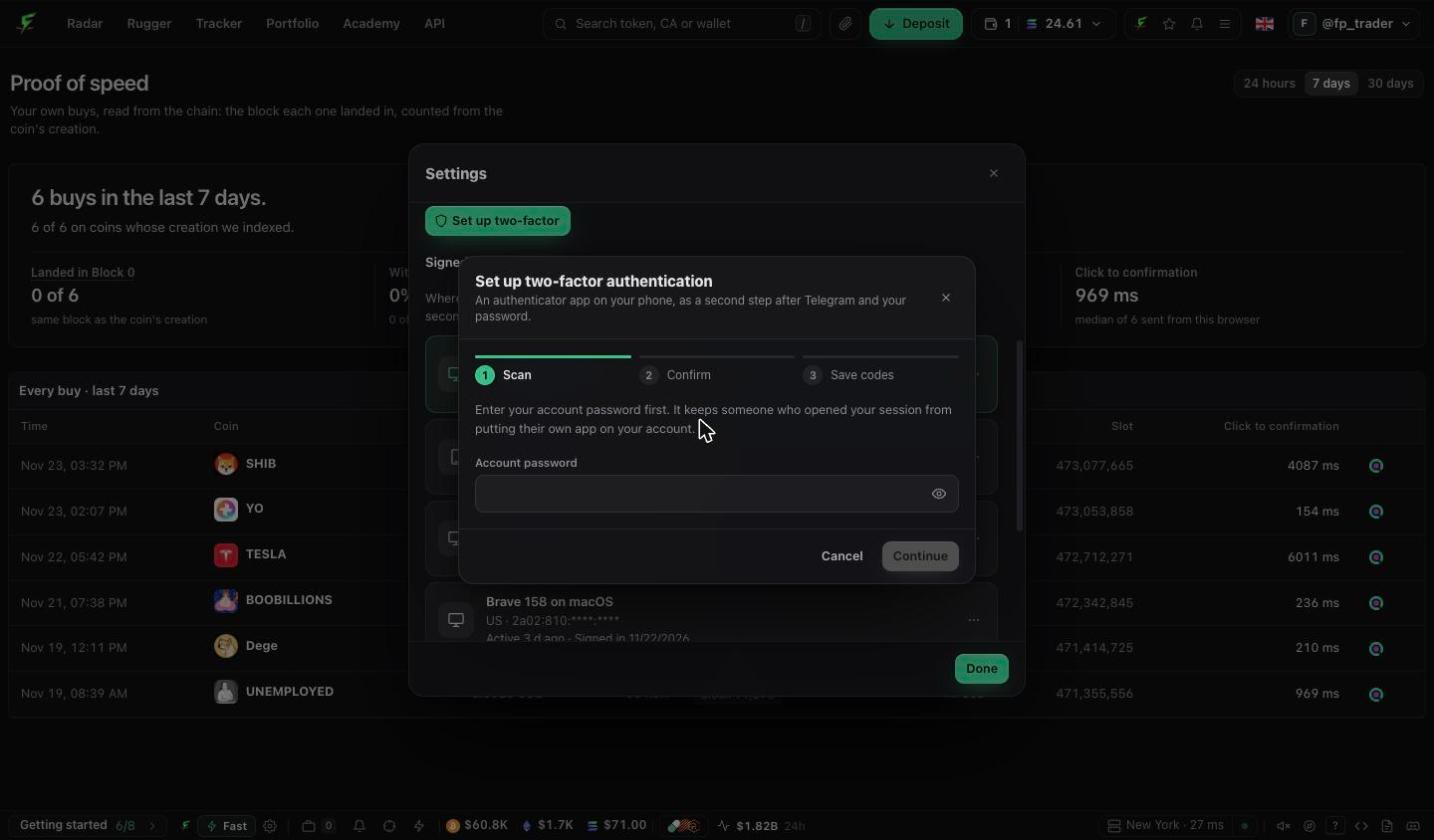
- 1Scan → Confirm → Save codes
- 2Account password, asked before the QR code
- 3Continue: shows the QR code (or the key to type)
Set up two-factor
Settings › Security › Set up two-factor. Account password if you have one.
Scan
Scan the QR code (or enter the key by hand).
Confirm
Enter the 6-digit code → Turn on. By default, a code is asked at login and for withdrawals.
Save the 10 recovery codes
Copy all or Download .txt, tick “I saved my recovery codes somewhere safe”, Done. Shown only once.
Ask for a code on…
| Switch | Effect |
|---|---|
| Login | A code after Telegram on every new login. |
| Withdrawals | A code with the password before funds leave a wallet. Also protects key export, the password and wallet deletion. |
| Transactions | A code unlocks trading on this device for a while (15 or 60 min). Otherwise trades, orders, strategies, conversions are refused (“Trading is locked…”) and the Unlock trading window opens. Lock now to cut it right away. |
- Lowering a protection (turning off a switch, extending the unlock) requires a code.
- New codes: replaces the recovery codes (the old ones stop working).
- Turn off: accepts a recovery code.
- A code works only once. 5 tries, then one more every 3 minutes.
- The “Transactions” lock doesn’t stop orders that are already armed.
Lost your phone? At login, “Lost your phone? Use a recovery code” (format XXXXX-XXXXX). Each code works once, to log in or turn off 2FA.
Signed-in devices
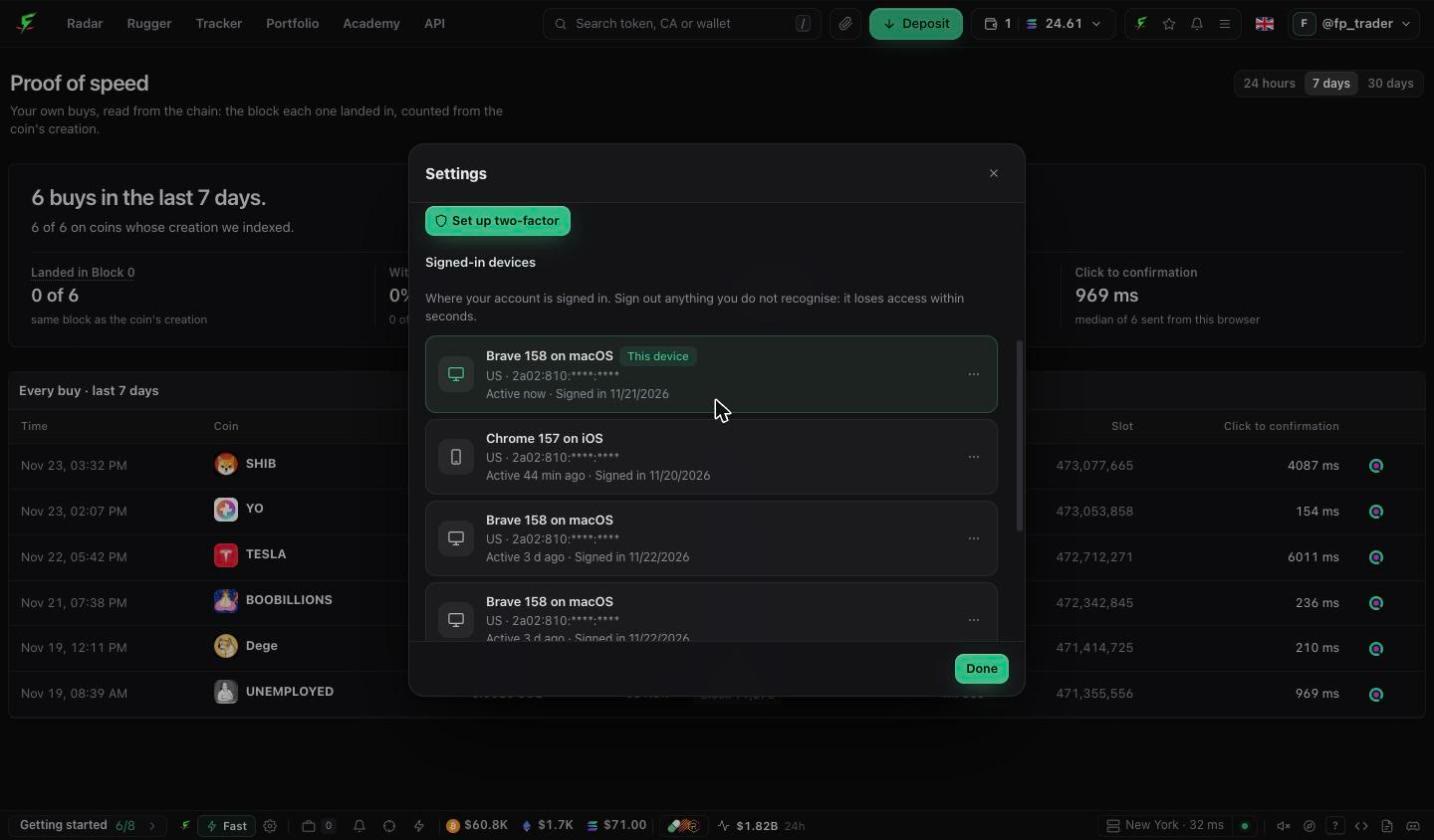
- 1This device
- 2⋯ Sign out
Settings › Security › Signed-in devices (refreshed every 30 s): browser, OS, device type, city, last active, sign-in date, This device chip.
- ⋯ › Sign out this device.
- Sign out of other devices.
- Sign out everywhere (this one included, Telegram login required again).
A signed-out device loses access within seconds.
“Sign out everywhere” (and a password change or reset) cancels your armed orders, TP/SL strategies and copies. “Sign out this device / of other devices” only cancels what those sessions had armed. A simple logout leaves them running.
Export a private key
Account › Export private key (or a wallet’s ⋯ menu).
- Pick the wallet (not archived ones: restore it first).
- Your password → Reveal key.
- 2FA code if withdrawals are protected (“Confirm the key export”).
Only from a Telegram session. 5 tries per 15 minutes.
Never share your private key. F Project will never ask for it: not on Discord, not on Telegram, not through the coach. The coach can’t read or export a key.
Good practices
- Turn on 2FA with Login + Withdrawals. Add Transactions if you leave the terminal open on a shared computer.
- Keep your 2FA recovery codes off your phone. If you lose your phone and those codes, F Project cannot turn 2FA off for you.
- Check Signed-in devices from time to time.
- Only official links: Useful links.