The desk: navigation, search and hotkeys

The terminal is a desk: a bar at the top, the active page in the middle, a status bar at the bottom. You can drive everything from the keyboard too.
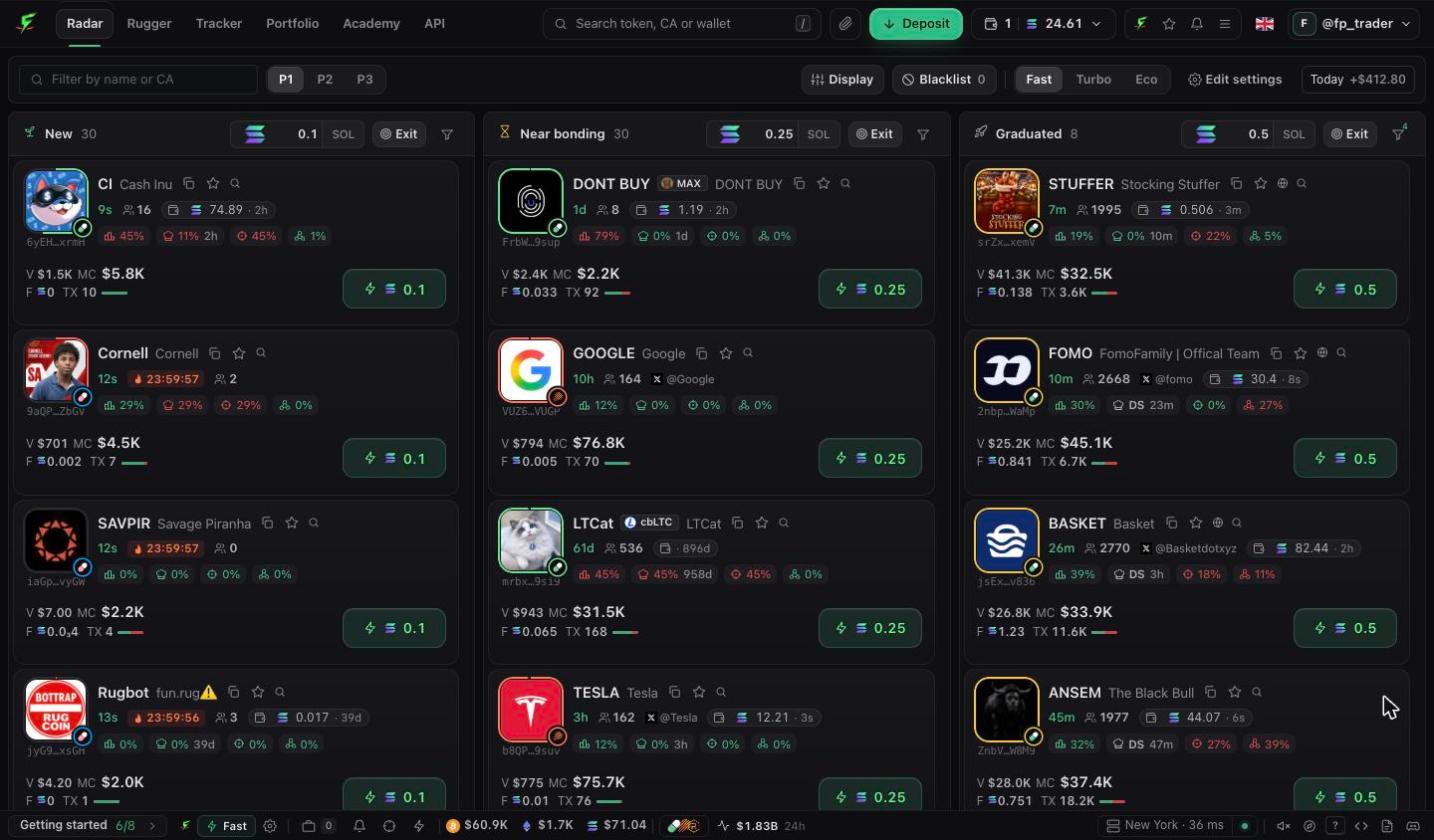
- 1Logo: back to the Radar
- 2Tabs Radar · Rugger · Tracker · Portfolio · Academy · API
- 3Search (/ or Cmd/Ctrl+K)
- 4Paperclip: paste a CA from the clipboard
- 5Deposit
- 6Execution wallets (count + SOL)
- 7Coach, Watchlist, Notifications
- 8More, language, account
- 9Speed preset (click = Fast/Turbo/Eco)
- 10Windows Positions · Alerts · Rugger · Proof of speed
- 11Execution region + ping
- 12Connection + Solana slot
The pages
| Page | URL | Hotkey |
|---|---|---|
| Radar | /radar | R |
| Rugger | /rugger (tabs ?tab=signatures, mine, finder, backtest, wallet, token) | G |
| Tracker | /tracker (wallets, alerts, monitor) | T |
| Portfolio | /portfolio | P |
| Academy | /academy | A |
| API | /api: the F Project API, coming soon | — |
| Rewards | /rewards (More menu) | — |
| Proof of speed | /speed | — |
| Token page | /token/<CA> | — |
| Wallet page | /wallet/<address> | — |
Tip: Cmd/Ctrl+click (or middle-click) on a link opens a new tab. Under 900 px wide, the tabs move into the More menu.
The More menu
- Help for this page (H)
- Rewards and referral
- PnL card: a balance/PnL card you move anywhere on the desk
- Dock this page (Radar, Tracker or token): keep it next to the next page
- Settings and Display
The Account menu (avatar at the top right)
| Group | Items |
|---|---|
| Account | Profile & username · Security & devices · Rewards & referral link · Alerts on Telegram · Bot settings · Export private key |
| Your trading | Today’s recap · Positions · Alerts · Proof of speed · Display settings · API keys |
| Help | Take the tour · Replay onboarding · Support |
Then Language and Log out.
Search
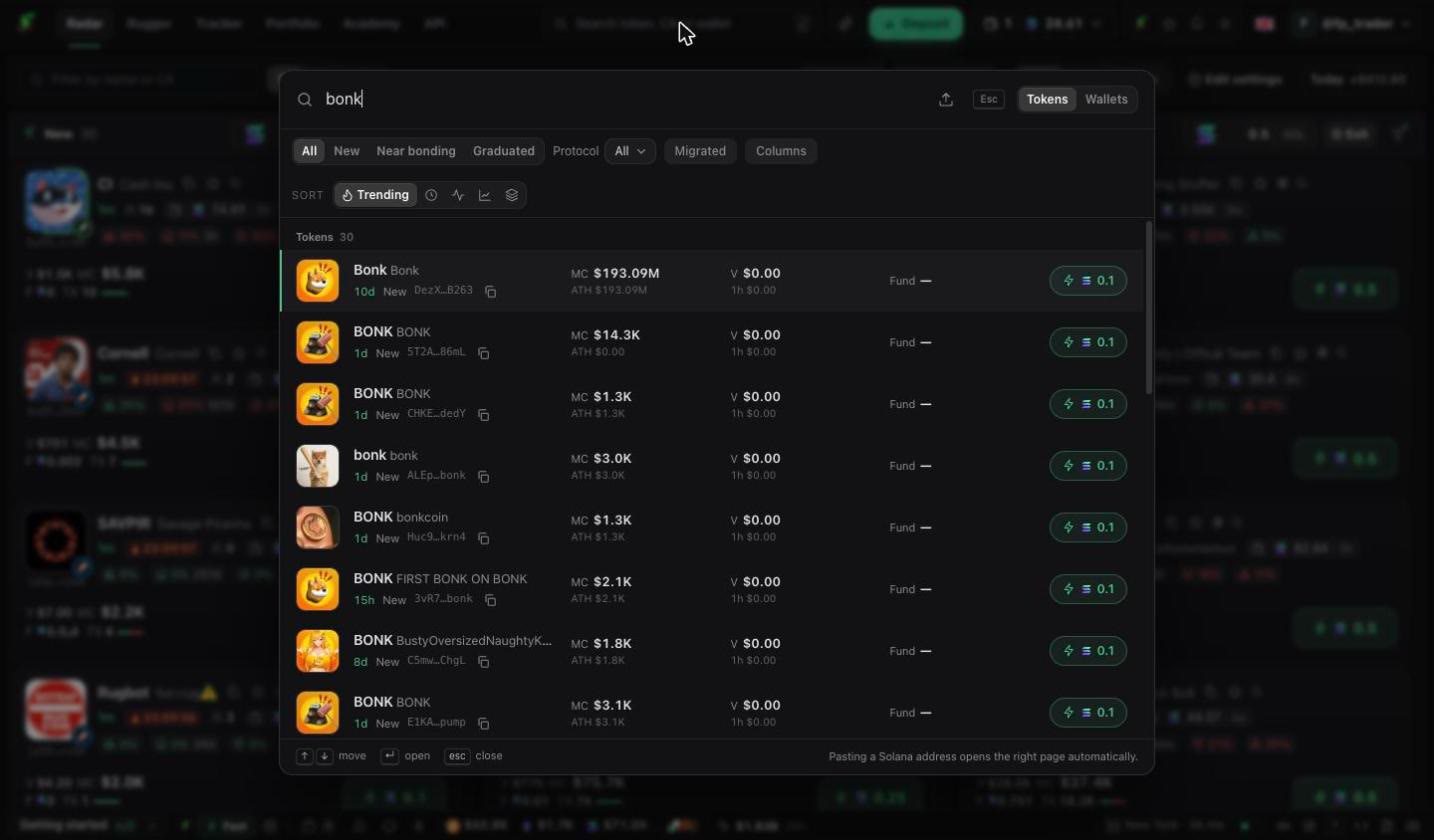
- 1Name, ticker, CA or wallet
- 2Tokens / Wallets
- 3Filters and sort
- 4Results (↑↓ then Enter)
Open it with /, Cmd/Ctrl+K or the top bar.
- Type a name, a ticker, a CA, or paste a wallet address.
- Tokens / Wallets tabs. Token filters: stage (New, Near bonding, Graduated), protocol, migrated, columns (MC, volume, dev funding, liquidity, fees) and sort (Trending, time, MC, 1h volume, liquidity).
- Image search: send an image to find the token that uses it.
- The last 5 tokens and wallets you opened stay in memory.
- ↑/↓ to move, Enter to open, Esc to close.
Paste to open: with no field active, Cmd/Ctrl+V opens a token or a wallet directly. Works with a bare address or an Axiom, pump.fun, DexScreener, Solscan, GMGN, Birdeye… link.
Hover: hovering a token, a wallet or a term shows a preview card. Hover = quick look, click = go there.
Hotkeys
All editable in Settings › Hotkeys. ? shows the list at any time.
| Key | Action |
|---|---|
| / | Search a token, a CA or a wallet |
| Cmd/Ctrl+K | Search (fixed) |
| R G T P A | Radar · Rugger · Tracker · Portfolio · Academy |
| C | Ask the coach |
| W | Watchlist |
| M | Mute / unmute alerts |
| B | Buy the open token (current amount) |
| S | Sell 100% of the open token |
| 1 2 3 4 | Buy 0.1 / 0.5 / 1 / 5 SOL of the open token |
| F | Fast · Turbo · Eco, in turn |
| H | Help for this page |
| ? | Hotkey list |
| Esc | Close any window (fixed) |
B, S and 1–4 send the order right away, with no confirmation, on the token page. Hotkeys do not work while you type in a field or while a window is open.
To change a key: click it, then press the new one. Esc cancels, ⌫ clears. On a conflict: Swap keys or Keep. Restore defaults resets everything.
The status bar (bottom)
- Speed preset: click = Fast → Turbo → Eco. The gear opens the presets.
- Windows Positions, Alerts, Rugger, Proof of speed: small windows that stay on top of the page. Esc closes the front one.
- BTC / ETH / SOL prices and Market pulse (Solana and launchpad summary over 5m / 1h / 6h / 24h).
- Execution region + ping: opens the Execution network.
- Connected / Connecting + current Solana slot.
- Sound, tour, ?, API, Playbook, Discord.
You pick what shows in Settings › Status bar (Bitcoin, Ethereum, Solana, Region, Connection, Slot).
Settings
More › Settings. Done saves (“Settings saved”).
| Tab | Content |
|---|---|
| Notifications | Where they show (top right, bottom right, top left), which events (Migration, Expansion, Buy, Sell). |
| Sounds | One sound per alert type: Your trades (Coin), Tracked wallets (Bell), Dev alerts (Alarm), Radar events (Chime), Orders (Ding). Choices: Bell, Chime, Ding, Pop, Coin, Blip, Sonar, Rise, Drop, Alarm, Click, None. |
| Hotkeys | See above. |
| Trading | Language, speed preset for the trading page, Bot settings button. |
| Status bar | What the bottom bar shows. |
| Appearance | Theme (F Project, Graphite, Contrast, Night), accent, up/down colors, background (Theme, Black, Deep, Soft), ambient light, font (System, Rounded, Classic, Mono), monospace numbers, text size 90–112%. Saved per device. |
| Security | Password, 2FA, devices. See Security. |
More › Display: Watchlist strip (off by default) and Getting started checklist.
Bot settings (from the terminal)
Account › Bot settings edits your Telegram bot directly (saves on its own):
- Bot message language, timezone.
- Buy and sell slippage of the current preset.
- Multiple wallets: buy delay, sell delay, size variance.
- Telegram notifications: buy confirmed, sell succeeded, sell attempt, rugger alert, new token detected, buy skipped, buy in progress, auto-buy off, profit cards in the community channel. Always on: buy/sell failed, auto-sell off, tracking off, bot errors.
- Copy trading on all wallets: apply to all or to a group, auto-buy / auto-sell all ON / all OFF, write a preset.
- Pump.fun cashback: claim per wallet.
This is the web version of ⚙️ Settings and Notifications.
Language
FR / EN, saved per device (default: your browser’s language). The language of the bot’s messages is a separate setting, in Bot settings.